
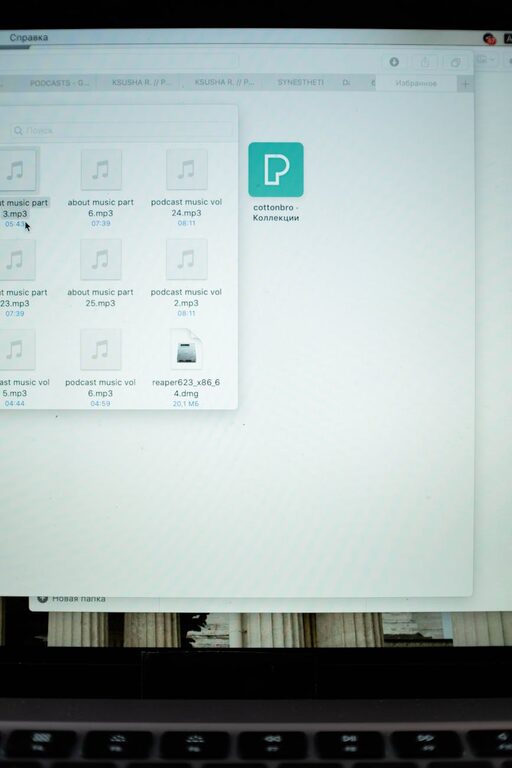
Keeping your computer files organized might seem like a small task, but it can make a big difference in how smoothly you work and how quickly you find what you need. Whether you’re a student, professional, or just someone managing personal documents, an organized digital workspace reduces stress and saves time. In this post, we’ll explore practical tips to help you keep your files in order.
Why Organize Your Files?
Before diving into the how-to, it’s worth understanding why file organization matters:
– Improved productivity: When files are easy to find, you spend less time searching and more time working.
– Reduced stress: A cluttered desktop or folder structure can be overwhelming.
– Backup made easier: Organized files make it simpler to back up important data.
– Efficient storage management: Well-organized folders prevent duplicates and free up space.
Step 1: Establish a Clear Folder Structure
A good folder structure is the foundation of file organization.
Use Broad Categories
Start by creating top-level folders based on main areas of your work or life, such as:
– Work
– Personal
– Projects
– Photos
– Finance
Break Down Further
Inside each main folder, add subfolders with more specific categories. For example, under “Projects,” you might have folders named after each individual project.
Be Consistent with Naming
Choose clear, descriptive names and stick to a naming convention to avoid confusion. For example:
– Use dates in YYYY-MM-DD format to keep chronological order (e.g., 2024-06-01_ProjectReport)
– Avoid spaces or special characters; use underscores or dashes instead.
Step 2: Name Your Files Clearly and Consistently
File names should tell you what the file is about at a glance.
– Be specific: Instead of “document1.docx,” try “MeetingNotes_2024-06-01.docx.”
– Include dates or versions when relevant.
– Avoid vague names like “final” or “copy” unless combined with more details.
Step 3: Declutter Your Desktop
Your desktop is like your physical desk — it’s best kept neat.
– Limit the number of files and shortcuts here.
– Use it as a temporary holding area, then move items into their proper folders.
– Consider using a special folder like “To Sort” to temporarily hold files waiting for organization.
Step 4: Regularly Delete or Archive Unnecessary Files
Old files take up space and can clutter your folders.
– Set a schedule to review files monthly or quarterly.
– Delete duplicates, outdated versions, or files you no longer need.
– Archive important but rarely accessed files into external drives or cloud storage.
Step 5: Use Tags and Metadata (If Supported)
Many operating systems allow you to add tags or labels to files.
– Use tags to group files across folders, such as labeling all “Invoices” or “Important” documents.
– This makes searching more flexible.
Step 6: Utilize Software Tools
There are tools designed to help with file organization.
– Use file search tools that index your files for faster retrieval.
– Duplicate finder apps help to locate and remove copies.
– Some apps can automate sorting based on rules you set.
Step 7: Backup Your Organized Files Regularly
Organizing is only useful when your files are safe.
– Use external drives, cloud storage, or both.
– Automate backups if possible.
– Keep multiple backup versions.
Additional Tips for Easy File Management
– Use shortcuts: Create desktop shortcuts for frequently accessed folders instead of cluttering your desktop.
– Avoid deep nesting: Don’t create too many nested subfolders; it makes navigation harder.
– Keep consistent file formats: Save documents in standard formats (PDF, DOCX) for easy opening on different devices.
– Use cloud folders: Sync key folders with services like Google Drive, Dropbox, or OneDrive for accessibility and backup.
Conclusion
Organizing files on your computer doesn’t have to be overwhelming. With a clear folder structure, consistent naming, regular maintenance, and the right tools, you can enjoy a well-ordered digital workspace that supports your productivity and peace of mind. Start small, be consistent, and soon your computer files will be easy to navigate and manage. Happy organizing!